
Never rely on closing the 1xBet app on your current phone to secure your account elsewhere. An old session on a shared tablet can still place bets or withdraw funds without you. The safe path is to force every device offline from inside your profile.
End active sessions from your 1xBet profile
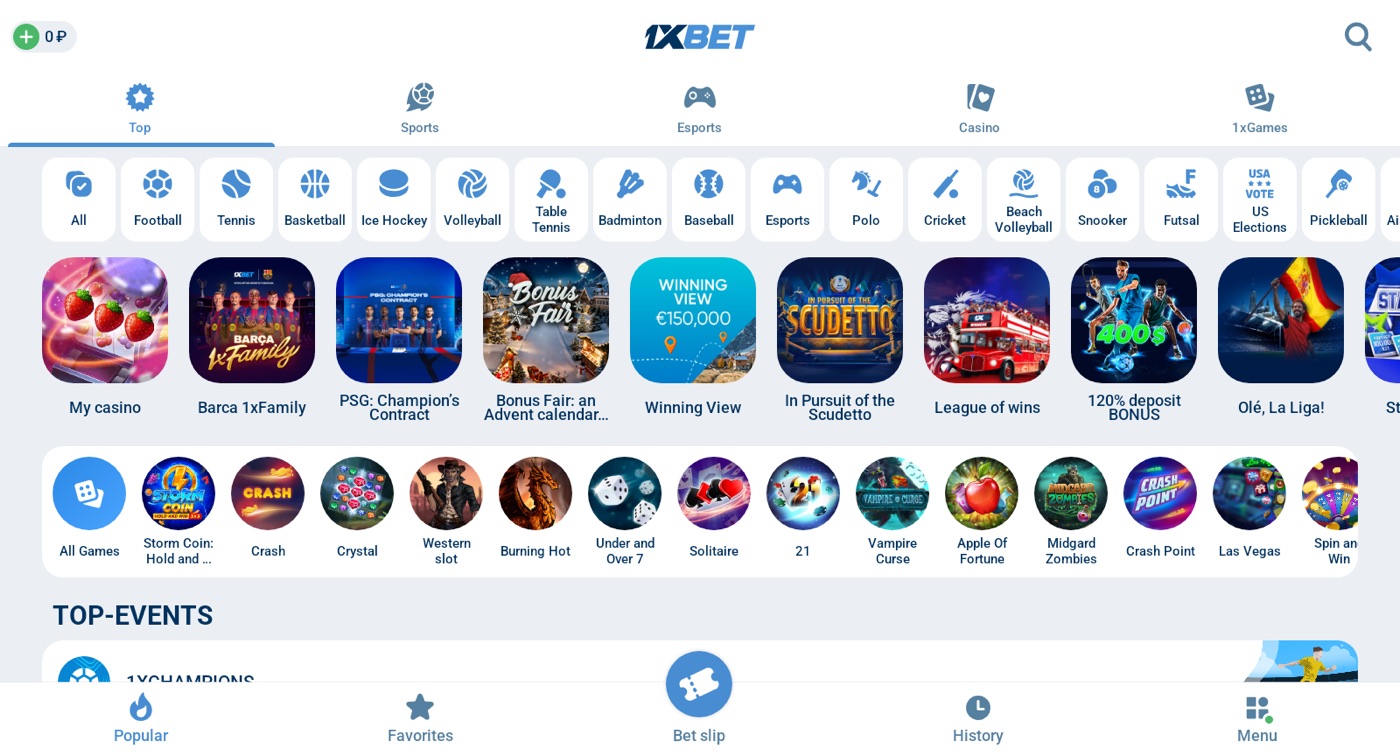
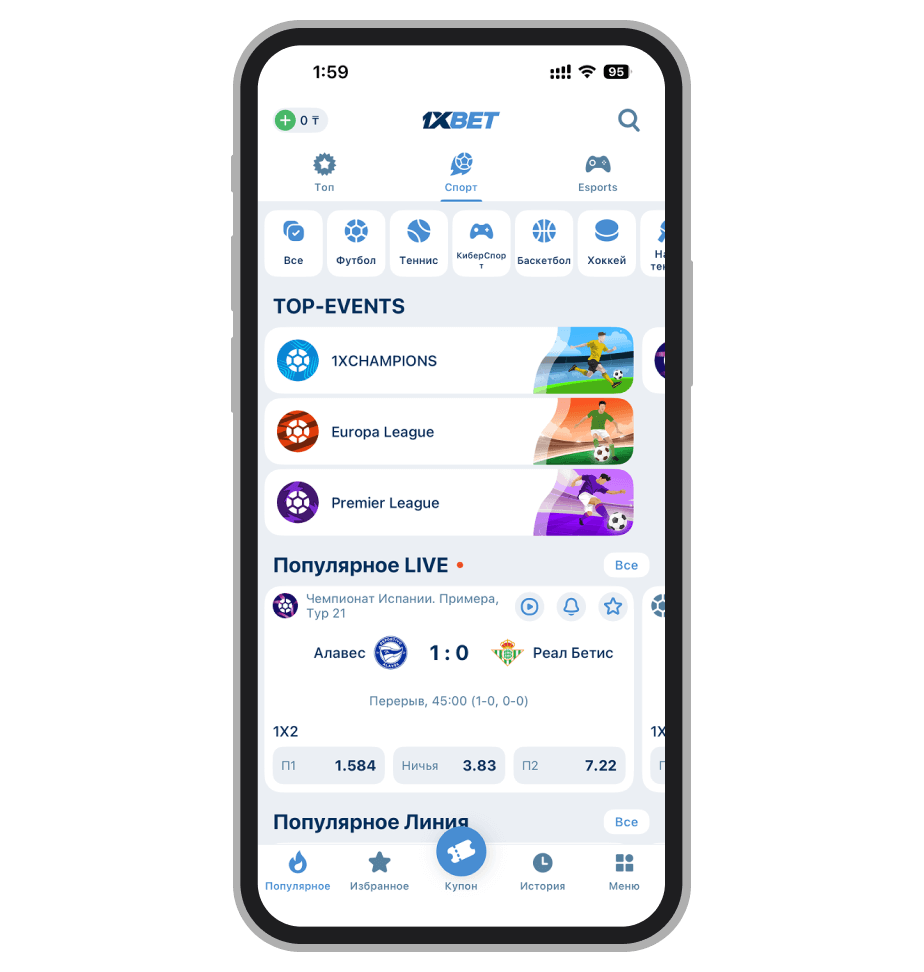
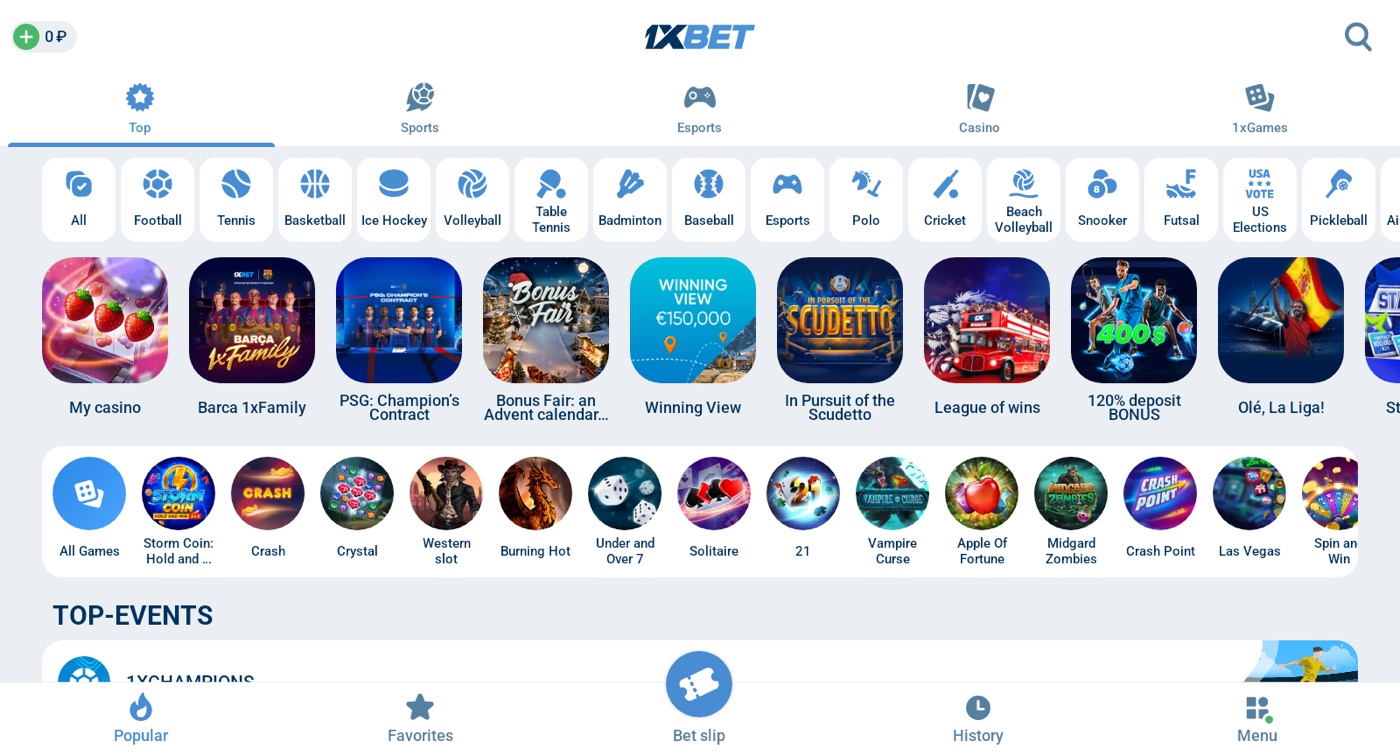
Open the application and tap the Menu icon in the top corner. From the menu grid, select your avatar or My Account to enter the profile screen. Scroll down to the Security tab and look for Active Sessions or Authorised Devices. This screen lists every phone, tablet and browser currently holding a valid 1xBet login.
Next to each entry, you will see the device model, the city and the last activity time. Tap the logout icon beside any device you do not recognise to kill that session immediately. To wipe everything at once, press the Close All Sessions button at the bottom of the list. The 1xBet system then signs you out everywhere, including the device you are holding right now.
Steps for a clean sweep:
- Open the application and tap the Menu icon.
- Select My Account, then open the Security tab.
- Tap Active Sessions or Authorised Devices in the list.
- Review the device model, city and last activity time shown.
- Tap the logout icon beside an unrecognised device entry.
- Press Close All Sessions to sign out everywhere at once.
- Confirm the action when the 1xBet prompt appears on screen.
- Log back in on your current phone with your password.
The confirmation dialog usually appears within about two seconds of pressing the button. Once you tap Yes, the list refreshes and shows a single entry only. That entry matches the device you are holding, confirming the sweep worked. Return to the Security tab to double-check the list is clean.
Why your 1xBet password must be unique
Ending sessions only fixes the moment; it does not stop a thief with your password from signing back in. If that password is one you reuse for email or banking, the risk spreads well beyond betting. Take a few minutes to set a strong, separate password just for your 1xBet profile. The strong and separate password guide covers this exact habit in detail. Consider it the fastest layer of protection you can add today.
Inside the app, you can update credentials under the Security tab. Tap Change Password, enter the current one, then type a fresh phrase of at least twelve characters. Combine upper case letters, lower case letters, numbers and one symbol to build it. Once saved, every other device will drop off the 1xBet network on its own.
The Change Password screen shows three fields: current password, new password and confirm password. The third field must match the second exactly or a red warning appears below it. The Save button stays grey until all three fields contain characters. After tapping it, a small tick icon appears for roughly one second.
Extra steps before and after a full sign-out
Switch off notifications before you clear sessions, otherwise alerts may still pop up on an old phone. Open your phone Settings, find the 1xBet entry, and turn off notifications and background refresh. If your phone has a built-in password manager, remove the stored 1xBet entry as well.
- Disable lock screen alerts in the phone notification settings menu.
- Delete saved 1xBet credentials from your password manager or keychain.
- Turn off the Remember Me toggle on the 1xBet login screen.
- Revoke 1xBet access from any third-party apps linked to your account.
- Enable two factor authentication inside the 1xBet Security tab.
- Check your email inbox for 1xBet sign-out confirmation messages.
After you sweep the devices, deposit funds back only on a device you control and trust fully. Reinstall the 1xbet android tablet app if you need it back on your own tablet. That fresh install runs only under your new password. Any other session left behind stays closed until someone enters the new credentials correctly.
Review your recovery options too, since a lost phone may hold your old sign-in details. Update your registered email address and phone number inside the profile screen. These fields feed the codes you will need if you ever lose access again.
Settings that control this
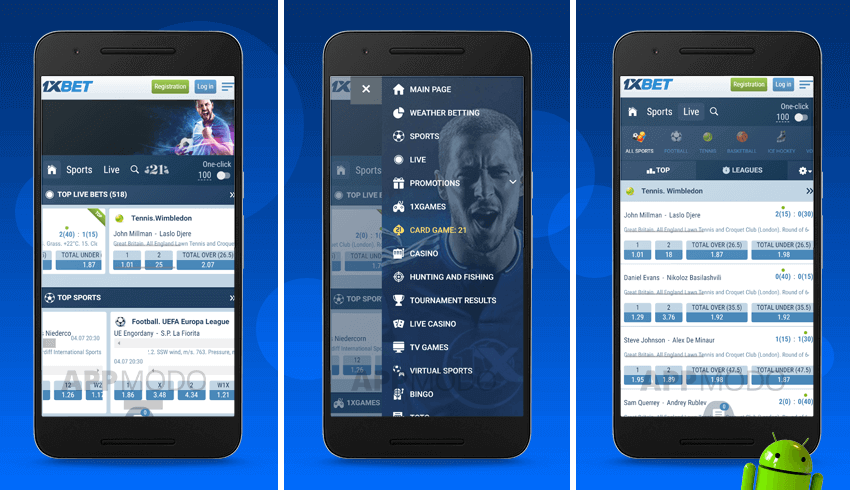
- Open the menu and go to My Account, then choose Security.
- Toggle the switch that ends other sessions when you change your password.
- Check the active devices list to confirm the other phone disappeared from it.
- Turn on two-factor verification so a code is required at every new login.
- Review recent activity to spot a login you do not recognise at all.
- Update your phone number so a recovery code can reach you quickly.
These switches sit in the settings screens that 1xBet shows for account protection. Turning them on does not cancel a bet you already placed. Your bet slip and open accumulators stay exactly as they were before.
The change only affects who can sign in and place new stakes. Each toggle saves after a short moment, and the menu then returns to the security page. You can revisit this screen as often as you like without any penalty.
Comparing the logout options
You can compare the three ways 1xBet lets you end a session. The table below shows what each option does on screen.
| Option | Where it lives | Scope |
|---|---|---|
| Sign out on this device | Menu > Log out | Current device only |
| Change password | My Account > Security | All devices |
| Active devices list | My Account > Security | Per-device removal |
Pick the first option for a quick exit when you simply want privacy on one phone. Choose the second when you suspect someone else holds your credentials right now. Use the third to remove a single tablet while keeping other devices active. The active devices list refreshes whenever you pull down on the screen.
FAQ
Does logging out cancel my open bets?
No. Your bet slip and open accumulators stay in place after any session ends. Only new bets need a fresh sign in.
Can I sign out on my phone but stay signed in on a tablet?
Yes, if you only use the Log out button in the menu. That option touches just the current device in 1xBet.
How fast does a password change end other sessions?
It usually happens within seconds of confirming the new password. The other device then sees the sign-in screen again.
Where do I check which devices are signed in?
Open My Account, then Security, and look for the active devices list. You can remove a device from that screen directly.